Showing posts with label XP. Show all posts

Sunday, July 17, 2011

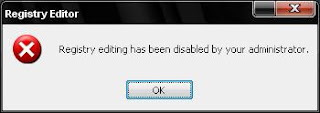
How to Fix Registry Editor Disabled By Administrator

This is the most seen problem in many PCs whose pc have been infected by viruses, Trojan, or Spyware.Virus creators/programmers always try to disable registry editor and other tools, so that people cannot fix their
issues or problem caused due to viruses.Even in work places in big company, administrators add registry editor disabled restriction so that employees cannot modify or change anything in company computers.
However, There are hundred of such article on web which are very confusing and are mostly the same (Copy and pasted).We have tried to simplify the solution so that even non techie person can do the the trick in seconds.
Follow the bellow simple procedure...
Basically, there are two possible solution to enable Registry editor.

Solution #1:
This will add and modify registry key and enable Registry Editor.
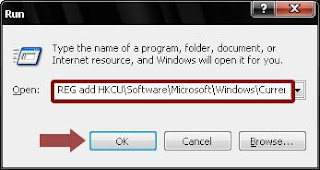
1:) Go to Start >> Run or Simply Press Window Logo+R
2:) Now in Run Dialog box,Copy and Paste the below command in Run command and Click Ok

REG add HKCU\Software\Microsoft\Windows\CurrentVersion\Policies\System /v DisableRegistryTools /t REG_DWORD /d 0 /f
Solution #2:
This is another way to enable Registry Editor using Group Policy but if your pc is infected by virus then it may be possible that your Group Policy may also not work(Disabled).In this case the above solution would work good.
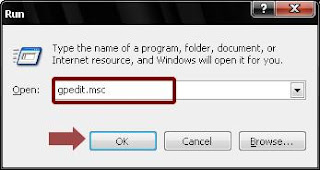
1:) Go to Start >> Run >> Type gpedit.msc and Click Ok.
2:) Now in Group Policy, Go to Local Computer Policy >> User Configuration >> Administrative Templates >> System.
3:) Now in right pane, Double click on "Prevent access to registry editing tools"
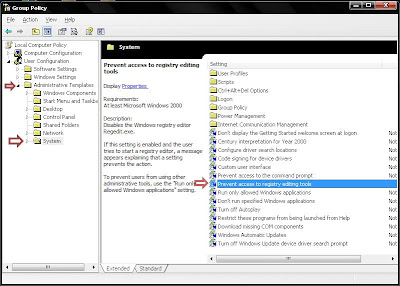
4:) Now in setting tab Click on Not Configured and Apply and Click Ok.If its already Not Configured Change to Disabled and Apply the Changes and Click Ok.
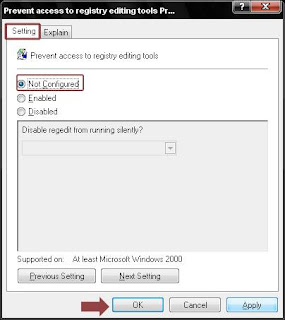
The above two solution will solve the problem.Try any one of the above, However if the error is still not solved then it may be possible that virus had tampered with the registry program.

Saturday, July 16, 2011

What is thumbs.db and How to Remove it

This is very funny, Initially when i got my first Pc and understood some of the basic like virus and antivirus.I consider and treated thumbs.db as virus because it use to create thumbs.db file automatically as soon as i
delete the file.I immediately called my engineer and told about this file and strange behavior.But i was surprised when he explained me about this.However there are still many people who are new to computer world and may treat it as virus or as a strange act.


What is thumbs.db file?
Thumbs.db is a thumbnail cache file which is used to store thumbnail images for Windows Explorer's thumbnail view. This speeds up the display of images as the smaller images do not need to be recalculated every time the user views the folder.
Basically, when you view images folder in thumbnail, you would see images showing in small preview(Thumbnail).This thumbnail information is saved in thumbs.db file in the same folder.So, next time when you visit the same image folder in thumbnail, you would see thumbnail images displaying very fast.Thumbnail cache file speed up the showing of thumbnails when you are viewing a folder in thumbnail view.
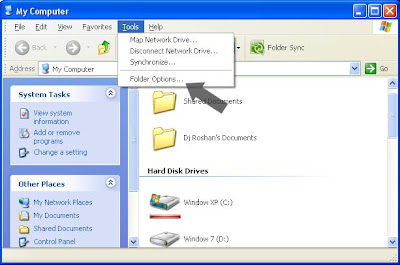
Note:The Thumbnail cache file is a hidden file.Go to My computer >> Tools >> Folder option >> Goto View Tab and put a tick on "Show hidden files and folder".

Disadvantage/Drawback.
Though it seems to be very useful and helpful but may not be good for computer with low disk space.thumbs.db file takes up disk space, Although the file size or space taken by thumbnail cache will be small.Suppose for 5-6 images in a folder may create thumbs.db of 7-8 kb. Folder with 500-700 images may create thumbs.db with file size of 800-900kb(Approx 1mb).If your pc have lots of such thumbs.db file on harddisk which have low disk space, you can save some valuable space on your harddisk by removing the thumbnail cache file(thumbs.db).

You might have seen when we remove or delete this thumbs.db file, it automatically created again.so, we need to turn off this thumbnail cache feature.
To turn this feature off, Follow the below simple procedure.

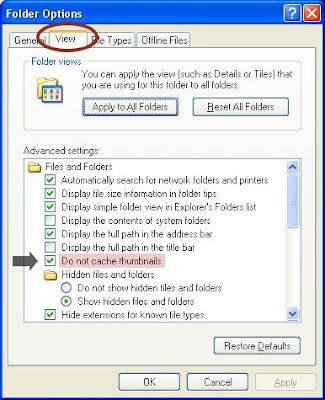
1.) Open My Computer >> Tools(from the menu bar on the top) >> Folder Option.


2.) Go to View Tab and put a tick on "Do not cache thumbnails" and Click Ok.

To delete all thumbs.db file from harddisk, we would search the file and then delete the file from harddisk.
1.) Goto Start >> Search.
2.) Now in Search >> Click on "All files and Folder"
3.) Now type thumbs.db in "all or part of the file name" box and now in below "Look In" drop down menu choose Local hard drives and search.
4.) You would see lots of thumbs.db file.Select all the file and choose delete(while deleting Press Shift + Del).

By Turning off the thumbnail cache feature will not affect viewing in thumbnail. This Tips is handy for computer with low hard disk space.

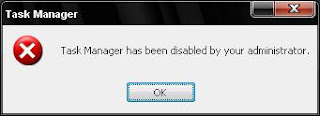
How to fix Task Manager Disabled by Administrative

f your pc is infected than its obvious that task manager will also be disabled and even in work places where
company always disabled task manager in companies computers.
Basically, This changes are done through registry changes in registry editor.Since, its most recurring and seen problem in most pc due to viruses.Below i have simplified the solution so that whenever you face such problem you can refer to this article and solve your problem and also i have created registry file which will enable task manager.So if your Company, College lab or your own pc get this task manager disabled error you can fix and enable using this registry file.

Follow below simple procedure to enable Task Manager...

Solution #1:
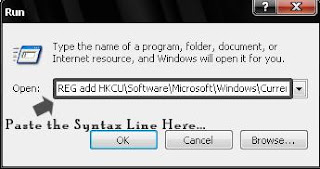
1.) Open Run Dialog box,Go to Start >> Run Or Press Window Logo+R.
2.) Now Copy the below syntax line and paste in run dialog Box and Press Enter.
REG add HKCU\Software\Microsoft\Windows\CurrentVersion\Policies\System /v DisableTaskMgr /t REG_DWORD /d 0 /f


Solution #2:
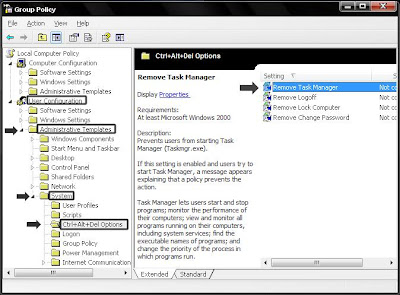
1.) Open Group Policy, Go to Start >> Run and Type gpedit.msc and Press Enter.
2.) Now navigate to following location
Local Computer Policy >> User Configuration >> Administrative Template >> System >> Ctrl+Alt+Del Options.


3.) Now in right-Side pane, Double Click on Remove Task Manager.
4.) Now Choose "Not Configured" option but if its already not configured than change it to "Disabled" and Click on Apply and Click Ok..